
How do I remove a user from my organisation?
Learn how organisation admins can remove users, handle admin roles correctly, and manage access securely.
When managing your organization, you may need to delete users who no longer require access. Follow these steps to remove a user quickly and securely.
Step 1: Open the Organization Dashboard.
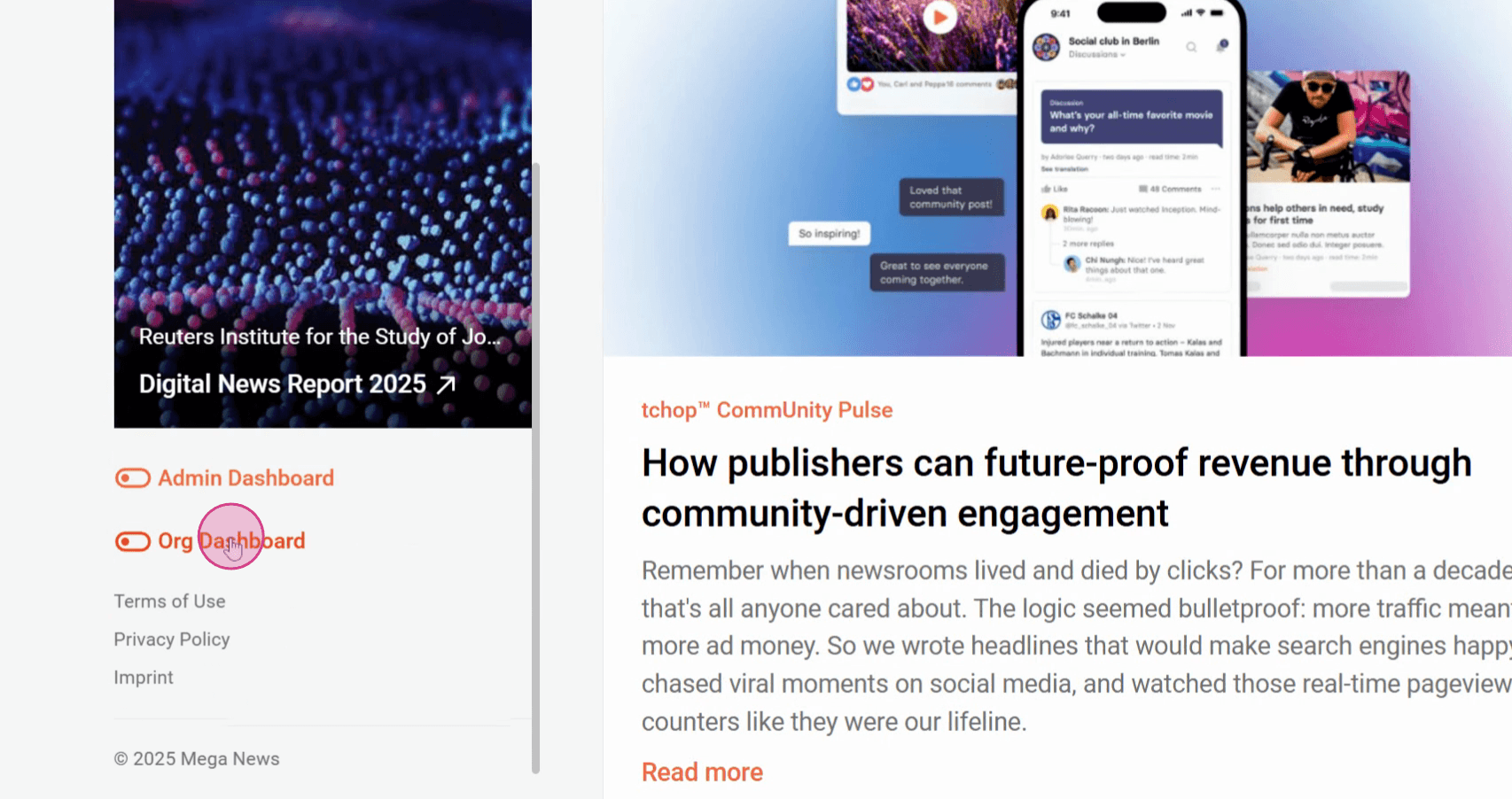
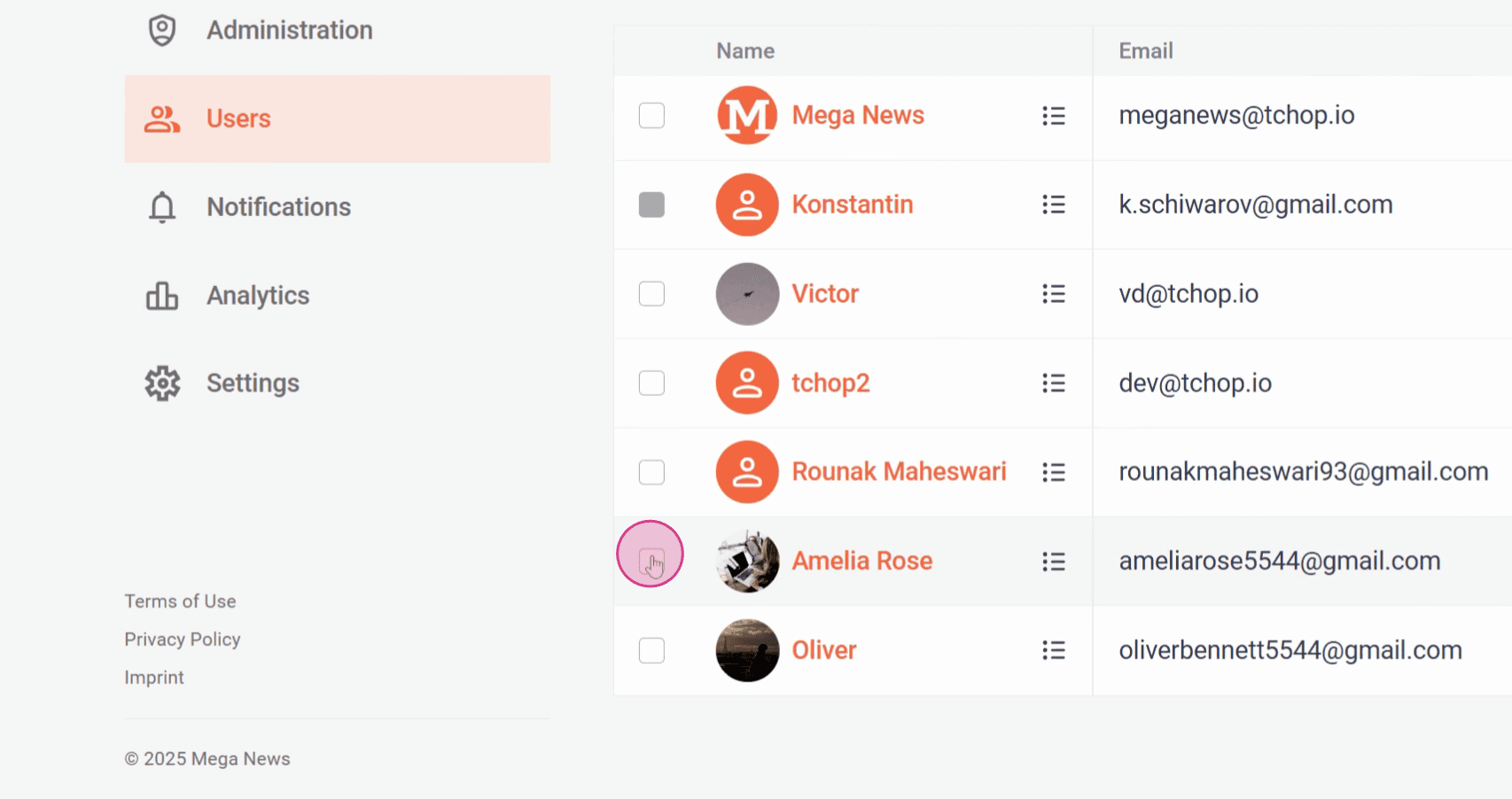
Step 2: Click Users to view the list of all members.
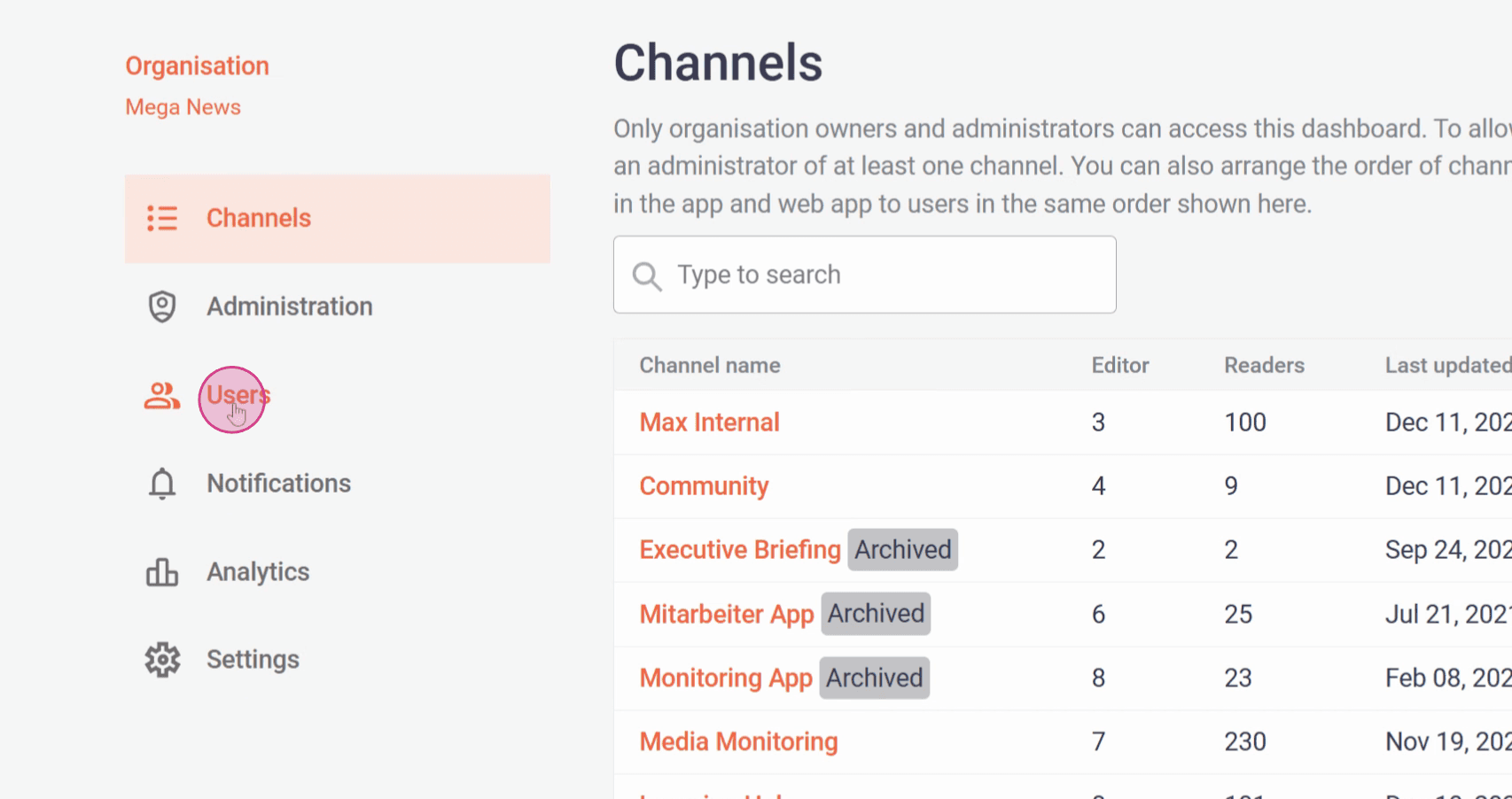
Step 3: Select the user you want to remove.
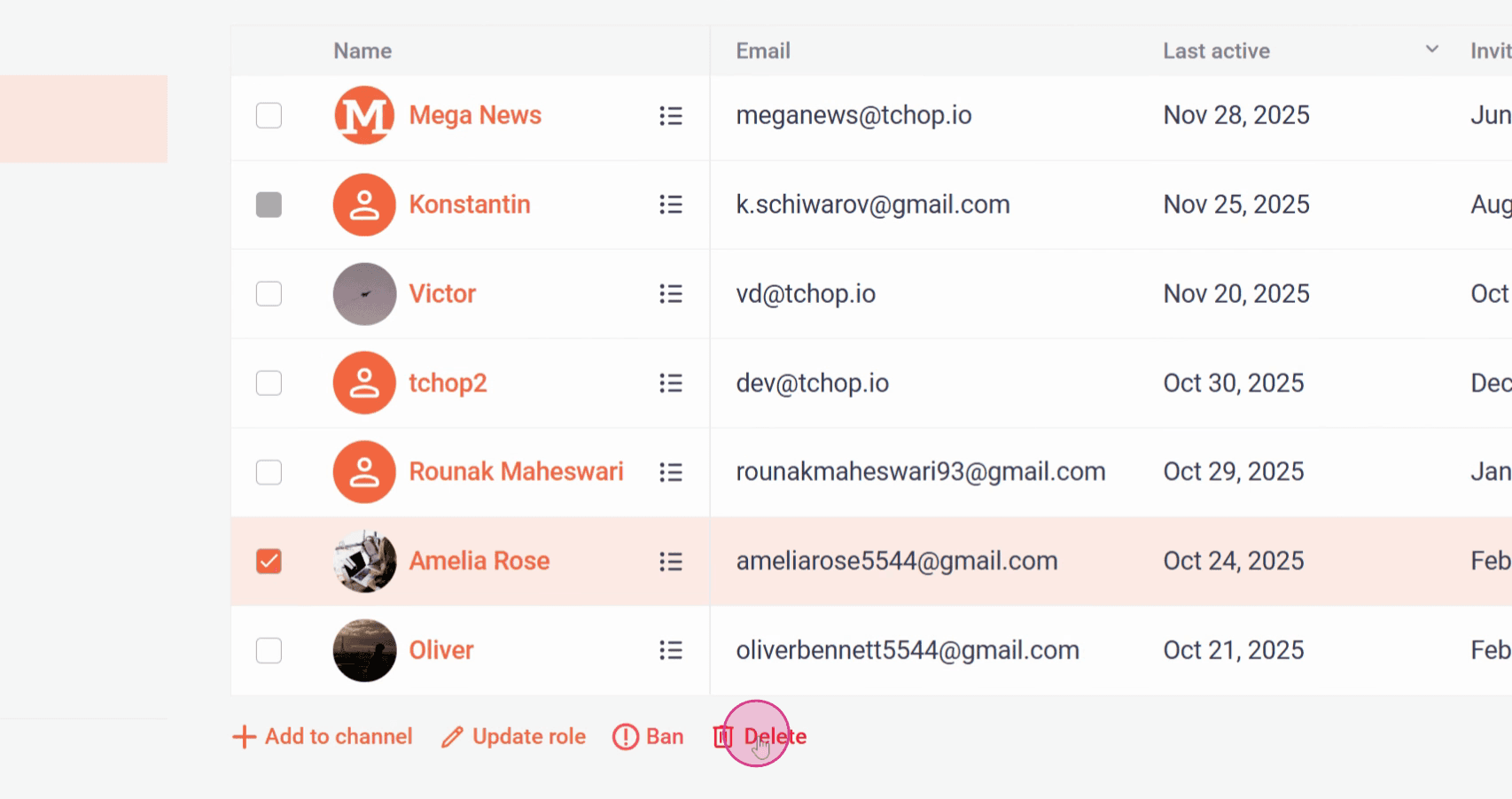
Step 4: Click Delete.
Step 5: Confirm by clicking Delete again.
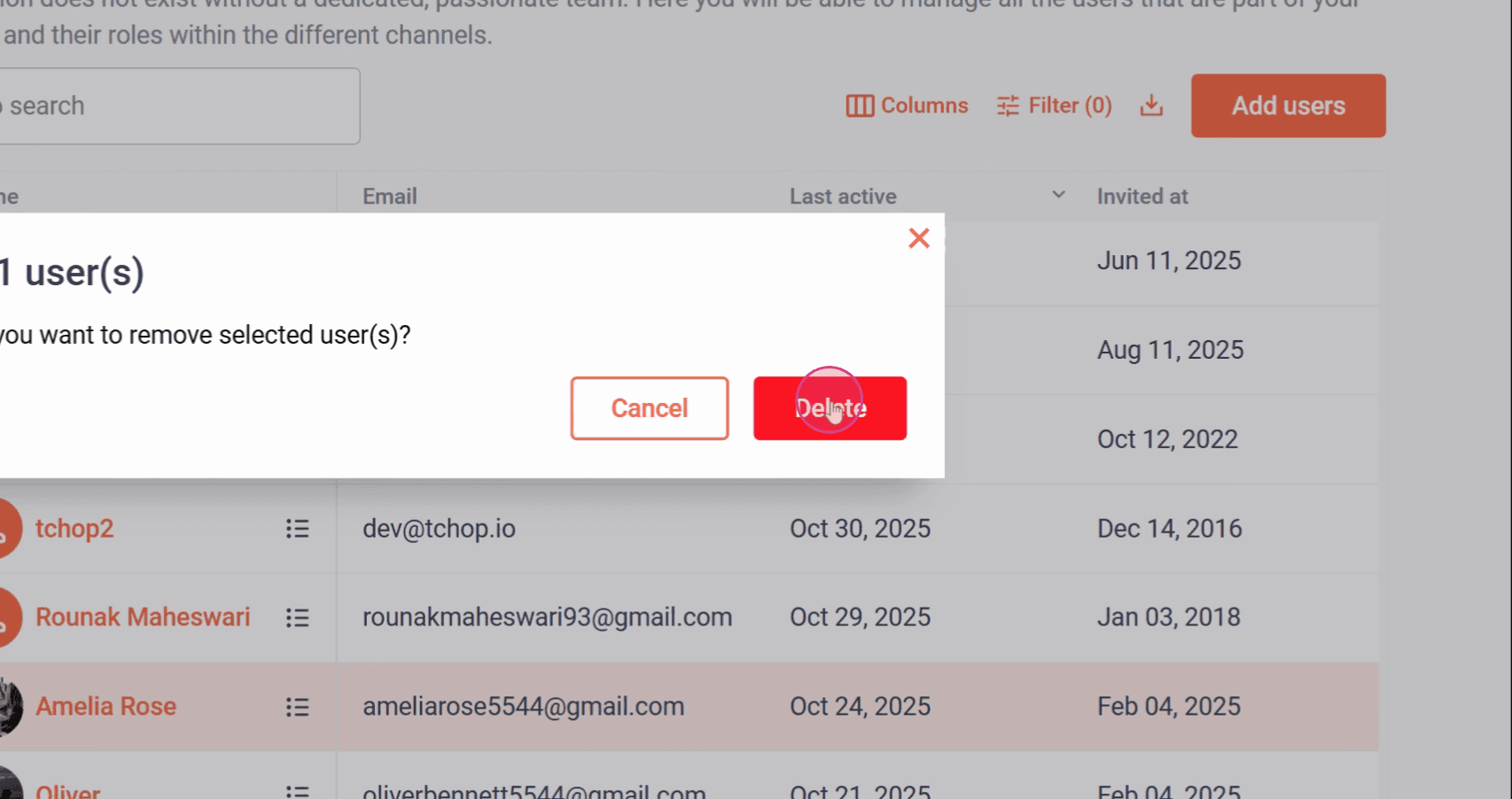
The selected user is now removed from your organization.
Please note, To remove an organization admin, first remove the user from the Organization Admin role, and then remove them from the organization and If the user is the last admin of the organization, they cannot be removed. To remove that user, first assign another user as an admin, then proceed with the removal.
Related articles