
How do I remove a user from a channel?
Learn how to remove a user from a specific channel via the org dashboard, including important admin edge cases.
Remove members from your channel to manage access and keep your workspace organized. Follow these steps to remove a user, using your organization's dashboard.
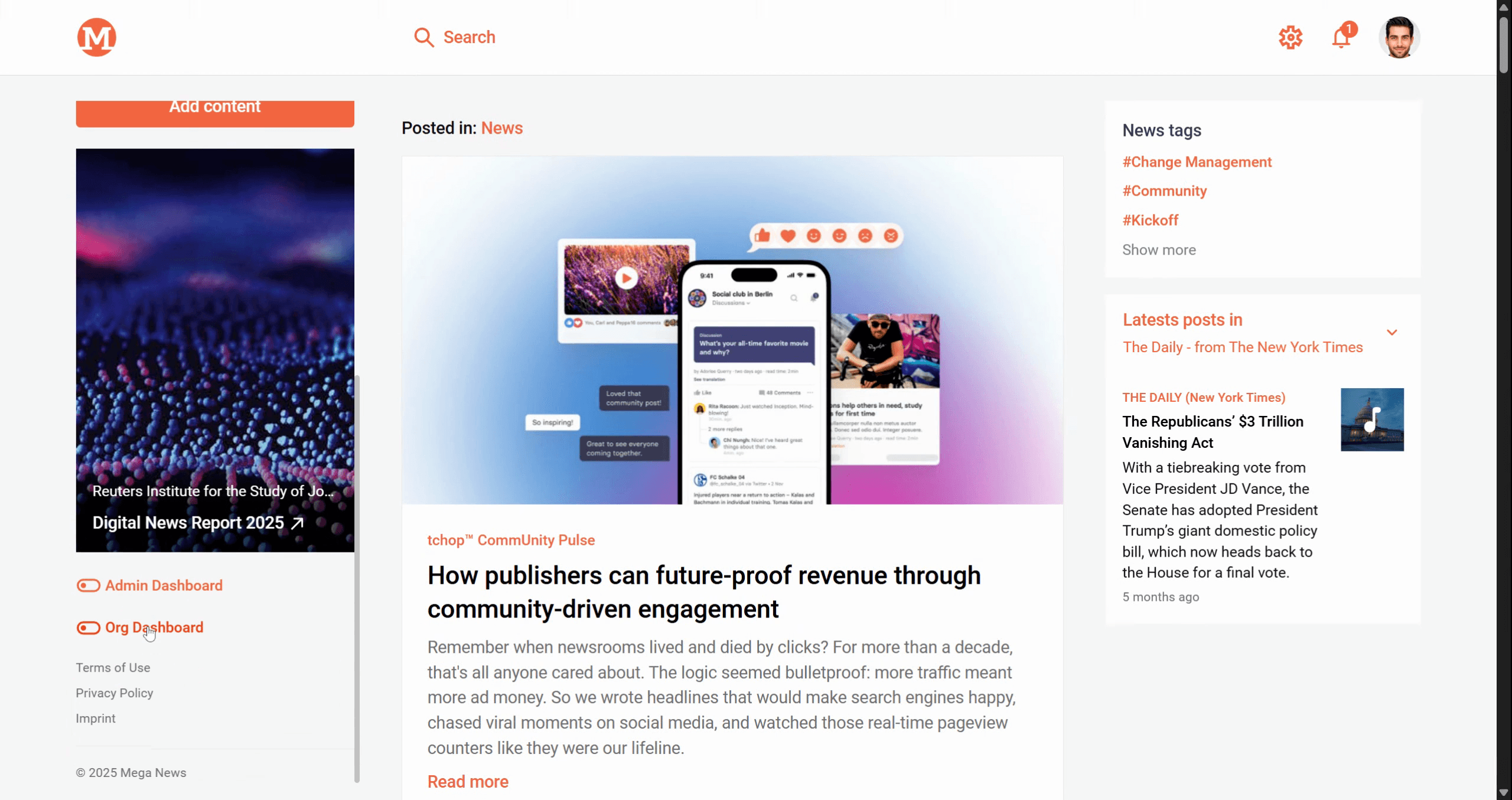
Step 1: Go to the Organization Dashboard.
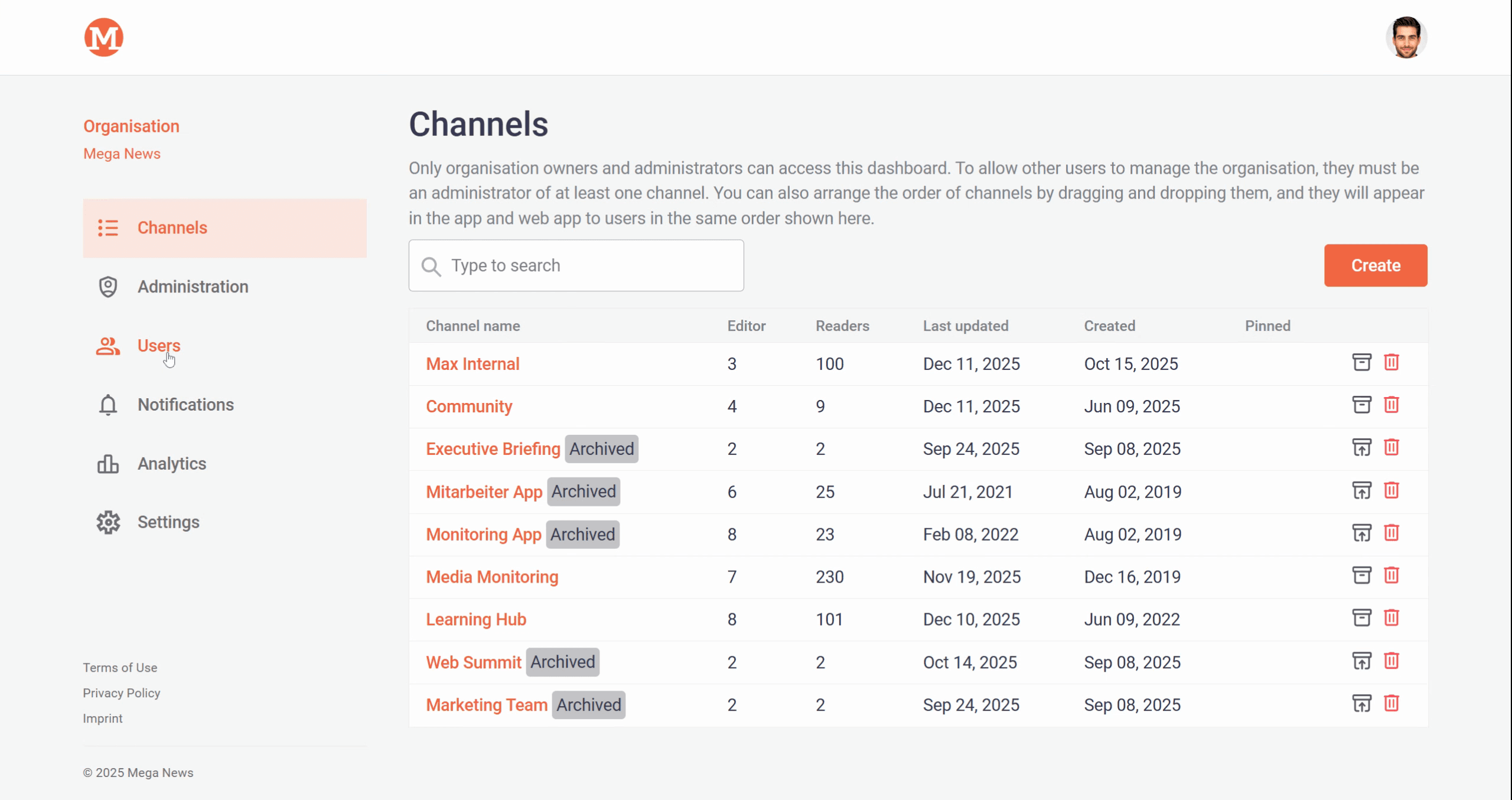
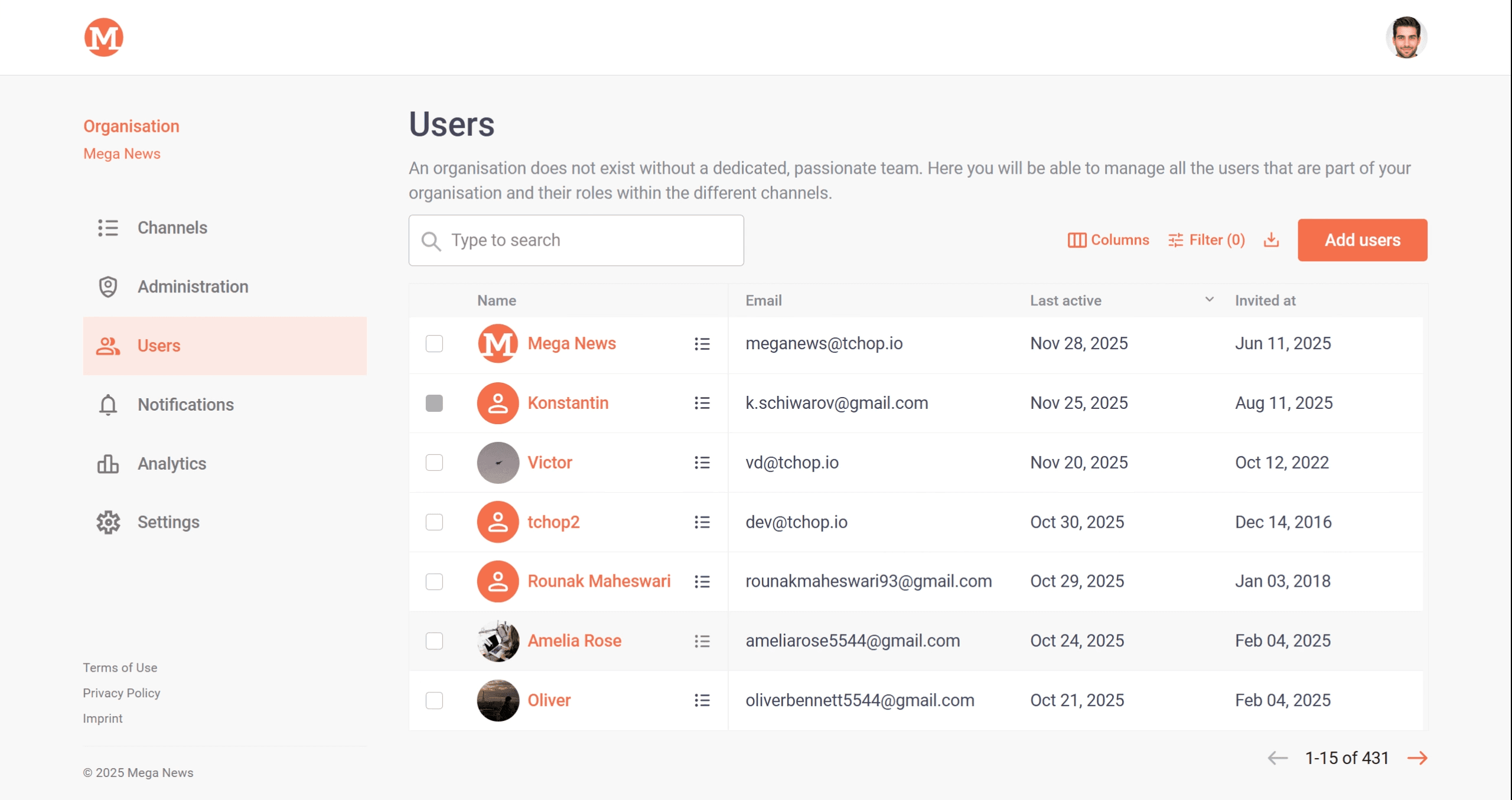
Step 2: Click on Users in the dashboard menu.
Step 3: Find the user you want to remove.
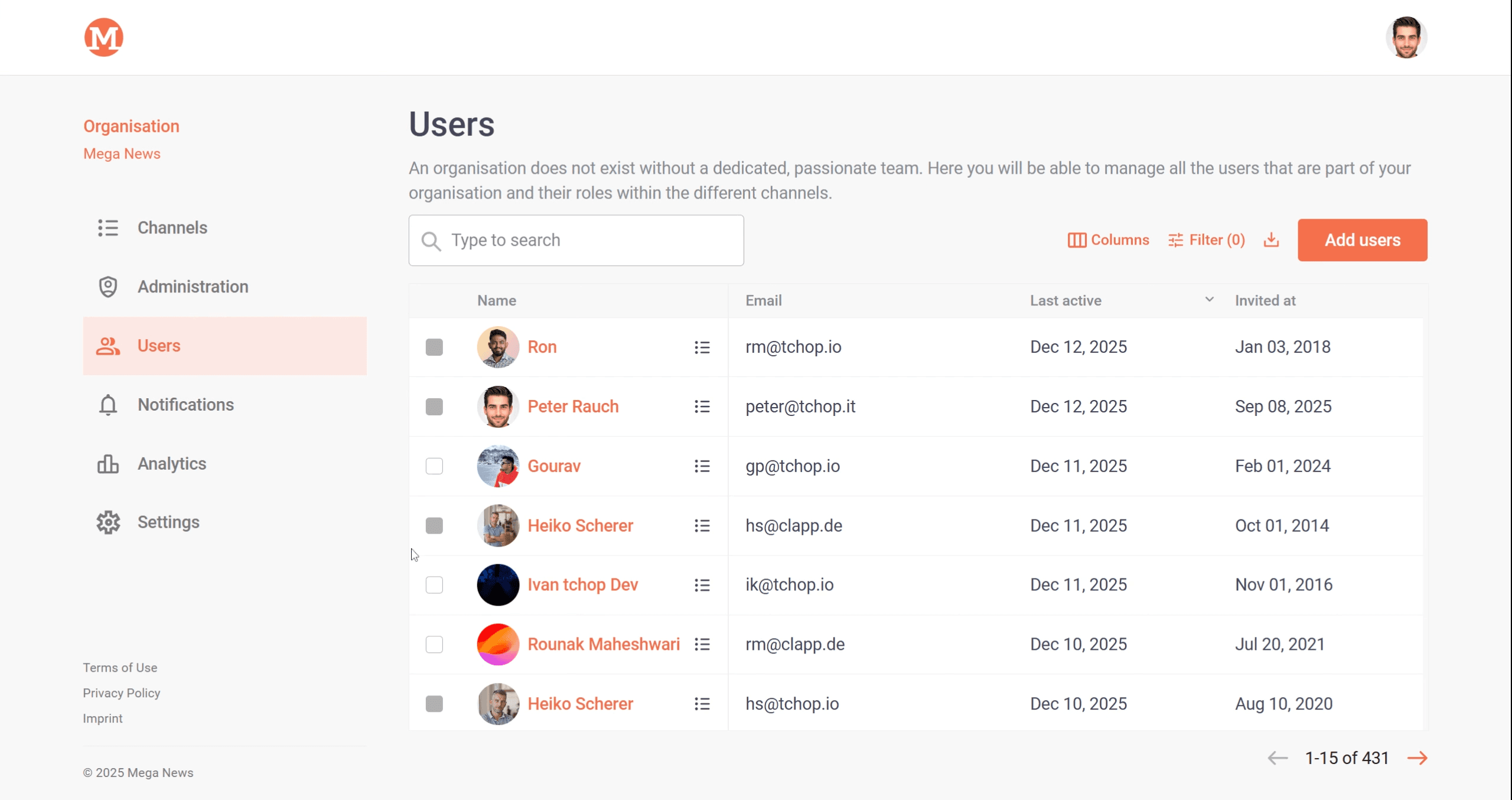
Step 4: Click the bulleted list icon next to their name to open user actions.
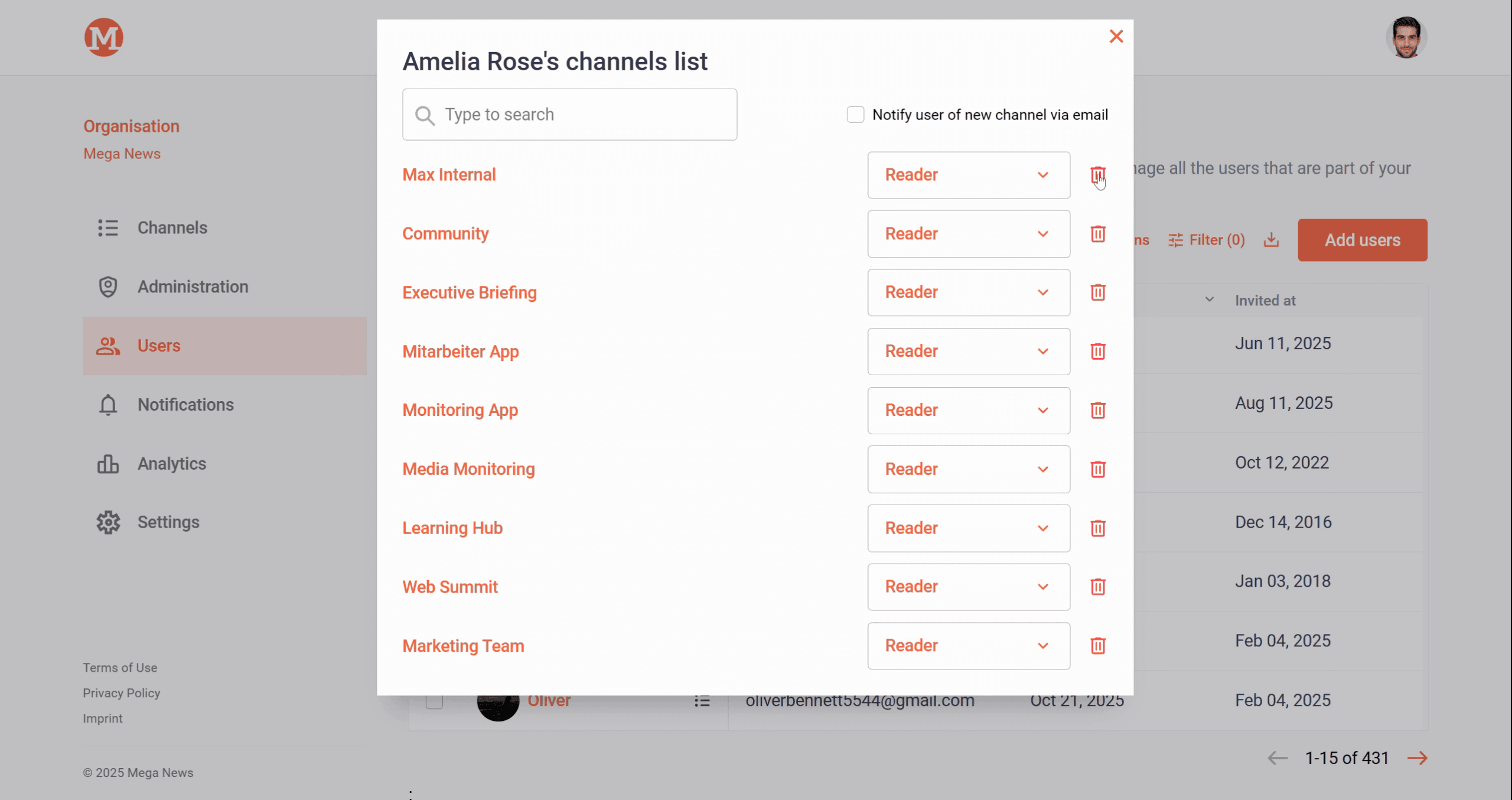
Step 5: Click the Delete icon next to the channel you want to remove them from.
Step 6: Click Delete to confirm.
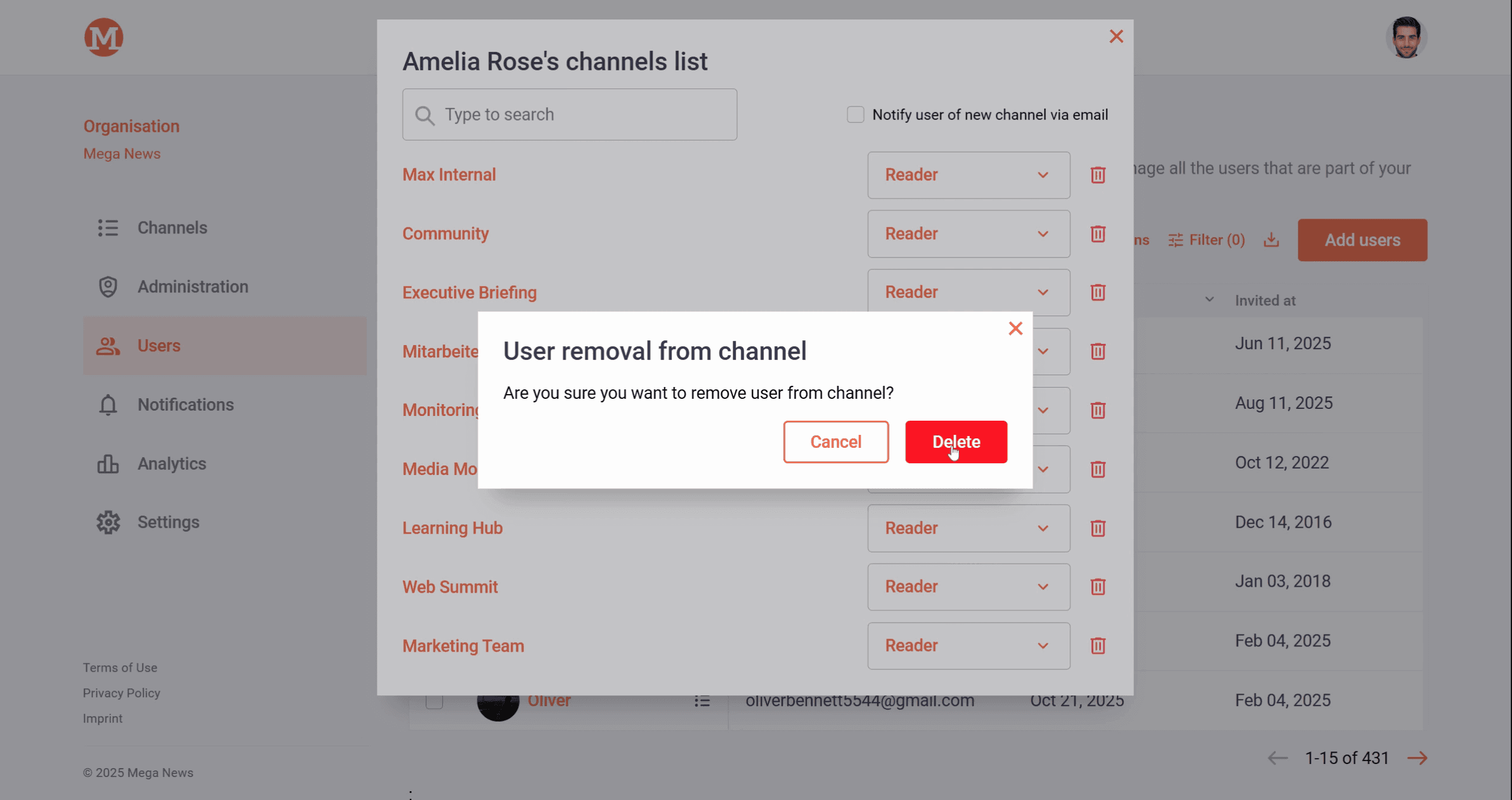
The user will be removed from the selected channel.
Note: If the user is the last admin in a channel, you’ll need to assign a new admin before removing them. If the user only belongs to one channel, removing them from that channel will also remove them from your organization.
Related articles